Guide
How to catch your elf on camera
Every step, with pictures from the real screens. You spend about five minutes, and the video is ready about two minutes later. Everything works in your phone’s browser, with no app to install.
Step 1
Choose one photo or two
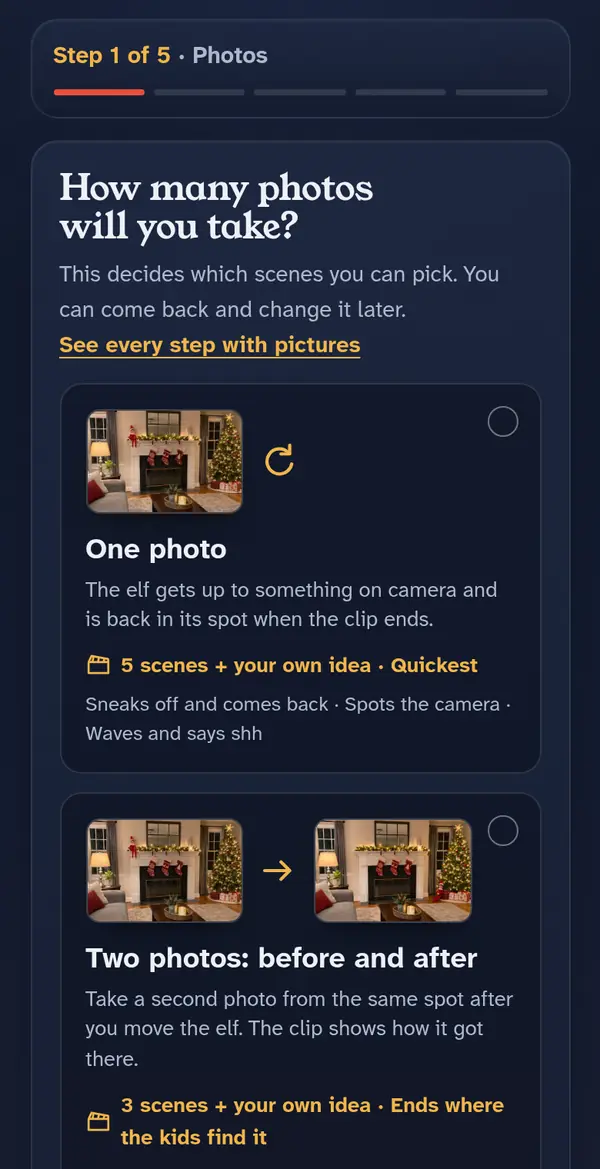
Open Make a video and choose how many photos you’ll take.
- One photo: the elf gets up to something on camera and is back in its spot when the clip ends. The quickest way.
- Two photos, before and after: take a photo, move the elf, then take a second photo from exactly the same spot. The clip shows how the elf got there, and it ends where the kids will find it.
Step 2
Pick what the elf does
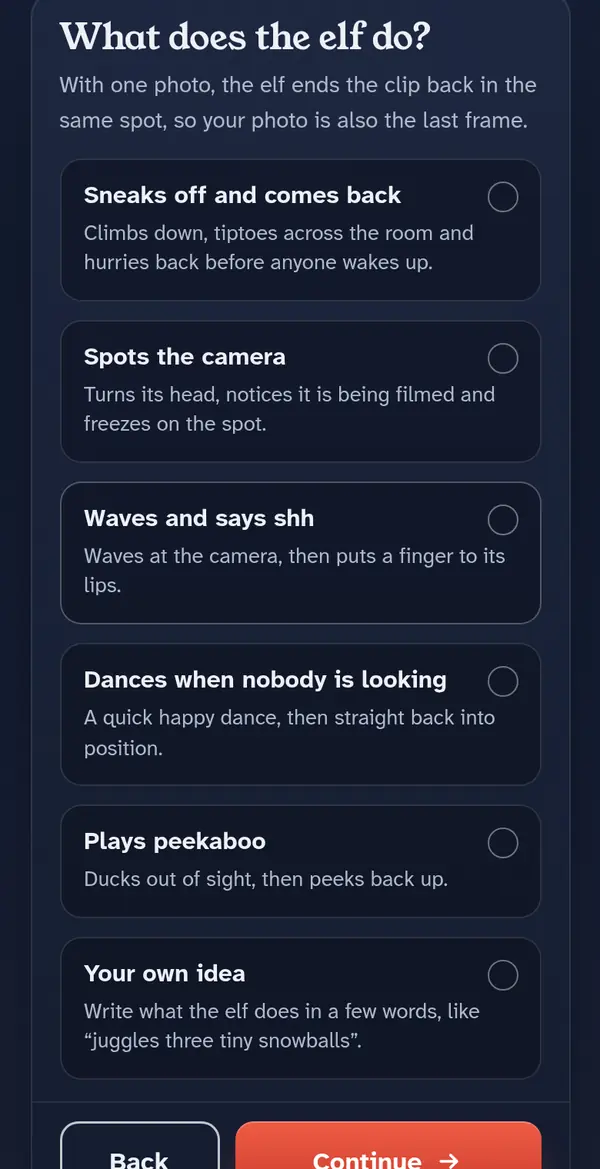
Choose a scene, such as sneaking off and coming back, spotting the camera, or a happy dance when nobody is looking. Each card says what happens in the clip.
With two photos, each scene also tells you where to put the elf for the before and after photos.
Step 3
Or write your own idea
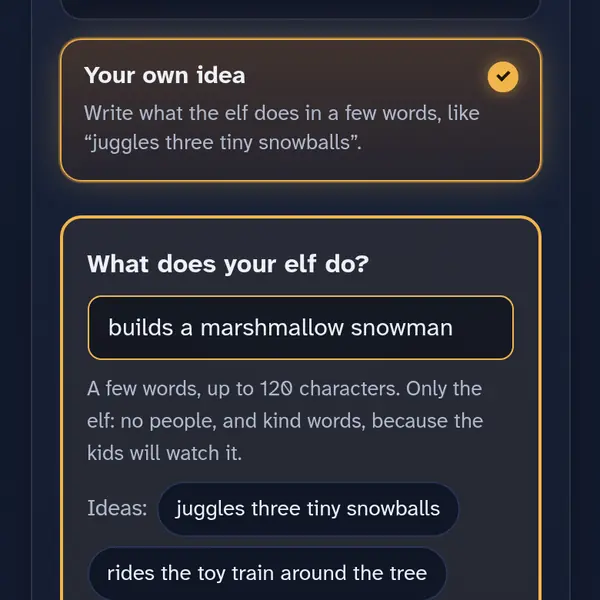
Pick Your own idea at the end of the list and write what your elf does in a few words, up to 120 characters. Tap an idea under the box to start from one.
- Describe only the elf. People can’t be added to the video, so words like “mom” or “the kids” are refused.
- Keep it kind: the kids will watch it. Rude, scary or violent words are refused, and the box tells you why.
- Simple actions work best: “juggles three tiny snowballs” works better than a long story.
Step 4
Take the photo
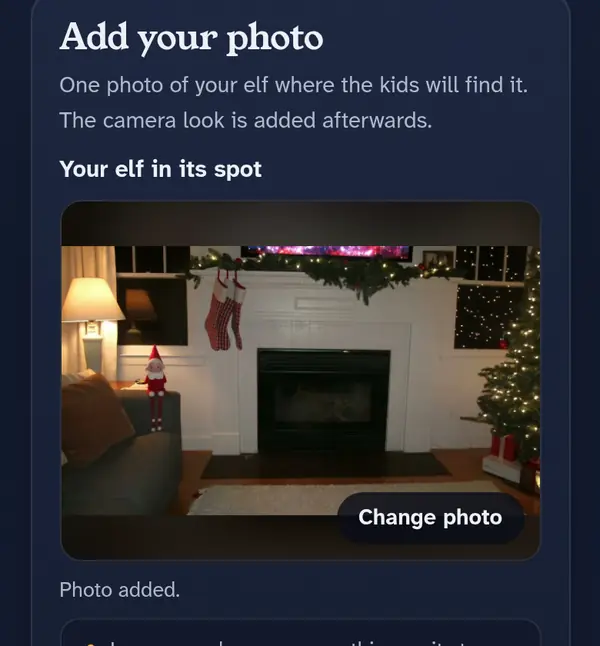
Put the elf in tonight’s spot, where the kids will find it, then tap Take or choose a photo.
- Lean your phone on something so it stays perfectly still.
- Leave some room around the elf, and turn on a lamp.
- No people or pets in the photo.
- Two photos: don’t move the phone between them. Only the elf changes.
Your phone shrinks the photo and removes hidden details, like where it was taken, before it uploads.
Step 5
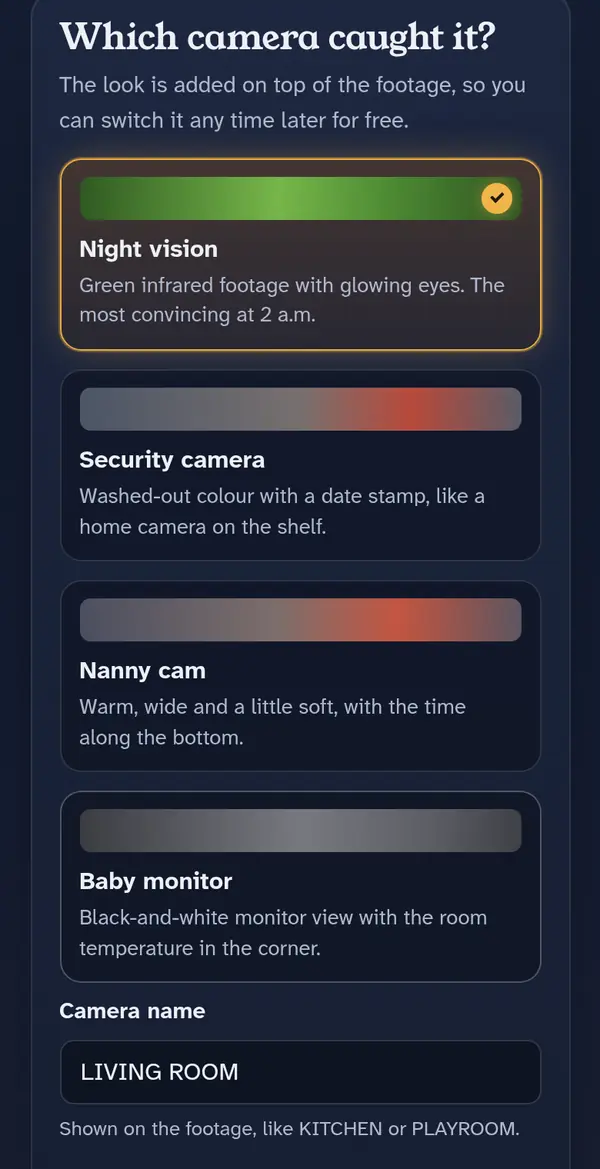
Choose the camera that caught it
Night vision, security camera, nanny cam or baby monitor. Then set the camera name shown on the footage (like KITCHEN) and the time on the clock. 2:13 a.m. is a good time to be caught.
The look is added on top of the footage, so you can switch it later for free. With a ready-made scene you can also add a small extra detail, like “holding a candy cane”.
Step 6
Make a free preview, or use a video from your pack
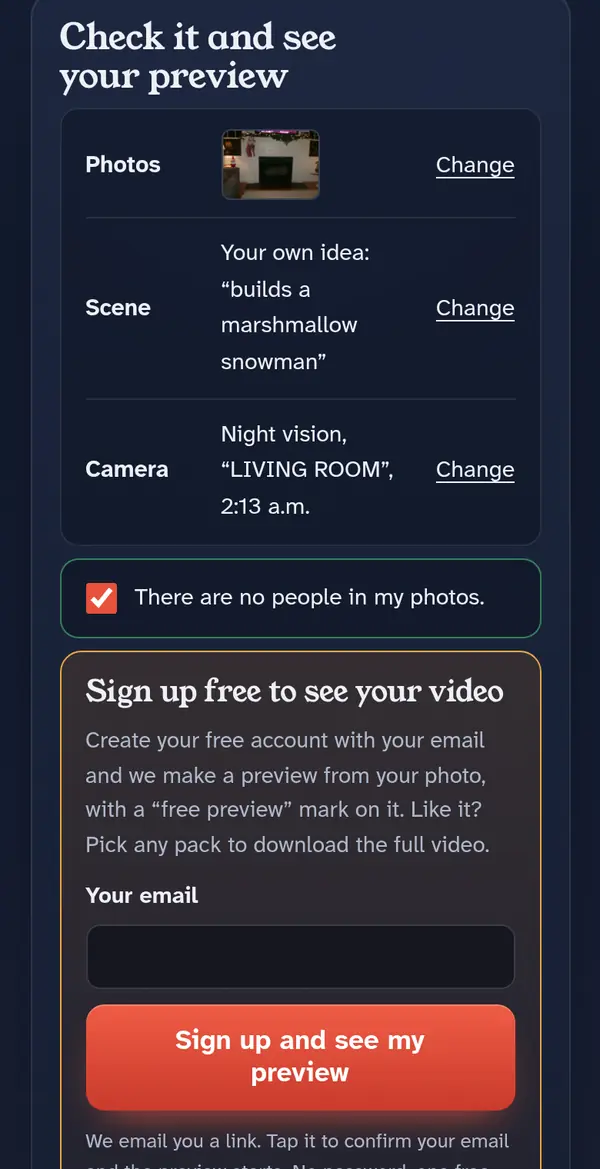
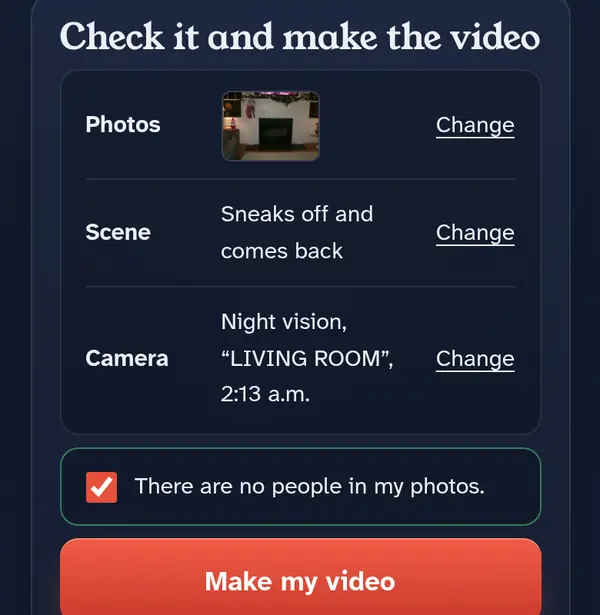
Check your choices, tick “There are no people in my photos”, then:
- First time? Make a free preview with just your email. We email you a link; tap it and the preview starts. It has a “free preview” mark, and there’s one per email.
- Have a pack? Tap Make my video. It uses 1 of your videos and is ready in about two minutes.
Step 7
Watch it first
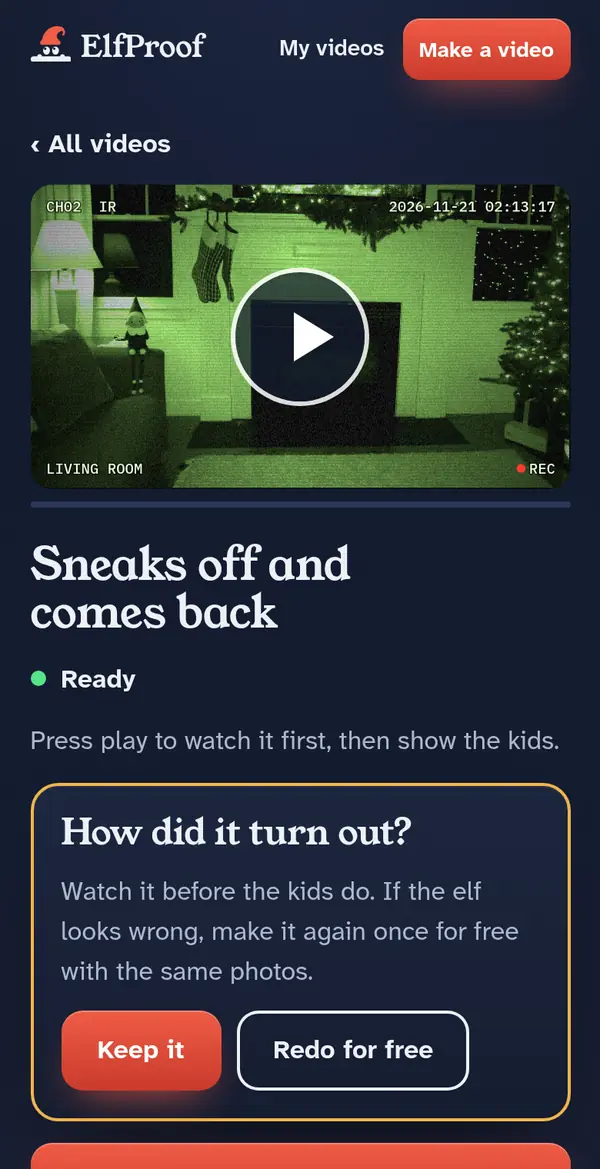
The page shows how it’s going, and we email you when it’s ready, so you can close it. Watch the clip before the kids do.
- Keep it if you like it.
- Redo for free if the elf looks wrong: it’s made again from the same photos, once, at no cost.
- A free preview shows Unlock the full video: use 1 video from a pack, or pick a pack, and the mark is removed.
Step 8
Show the kids and save it
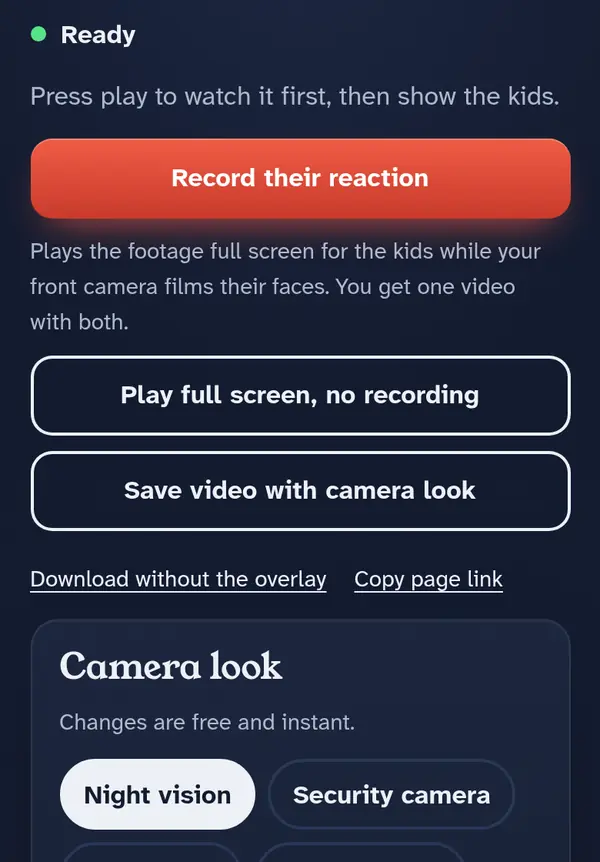
- Play full screen to show it at breakfast.
- Save video with camera look keeps it on your phone, with the overlay and the time stamp.
- Download without the overlay gives you the plain footage.
- Switch the camera look, the camera name or the time whenever you like. It’s free and instant.
Opened the link inside TikTok, Instagram or Facebook? Saving and the camera often don’t work there. Tap the ••• menu and choose “Open in browser”.
Step 9
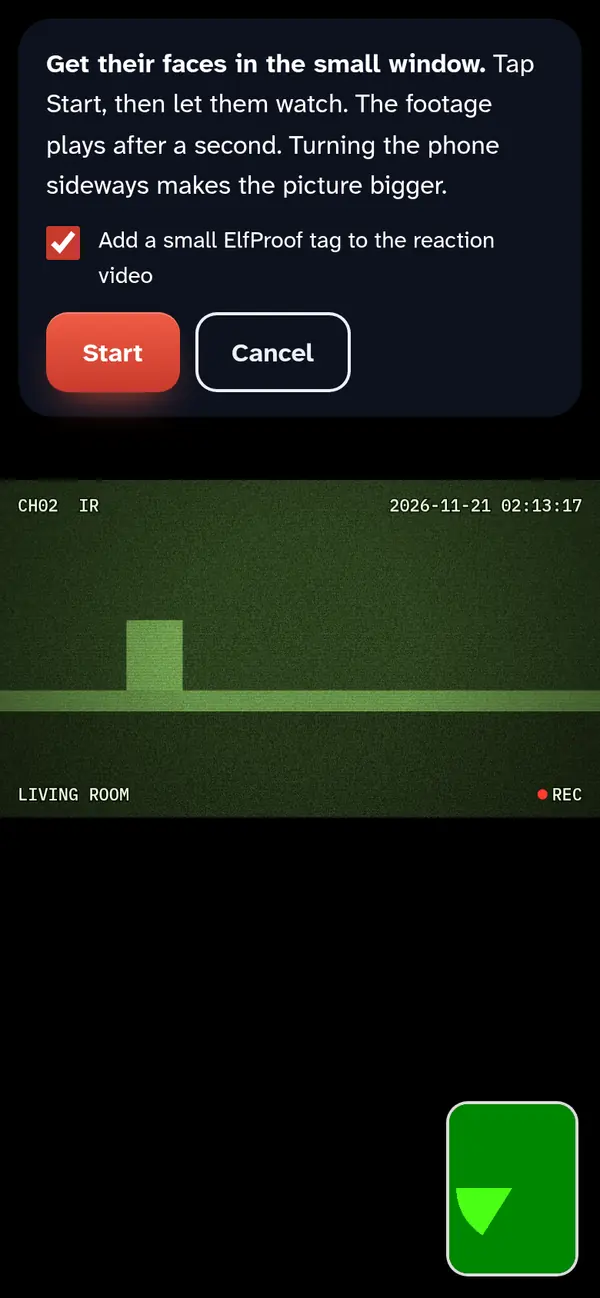
Record their reaction
Tap Record their reaction, get their faces in the small window, then tap Start and hand over the phone. The footage plays full screen while the front camera films them, and you get one video with both. Turning the phone sideways makes the picture bigger.
The reaction video is made on your phone and saved there. It’s never uploaded to us.
Step 10
Santa’s arrival video, for the first night
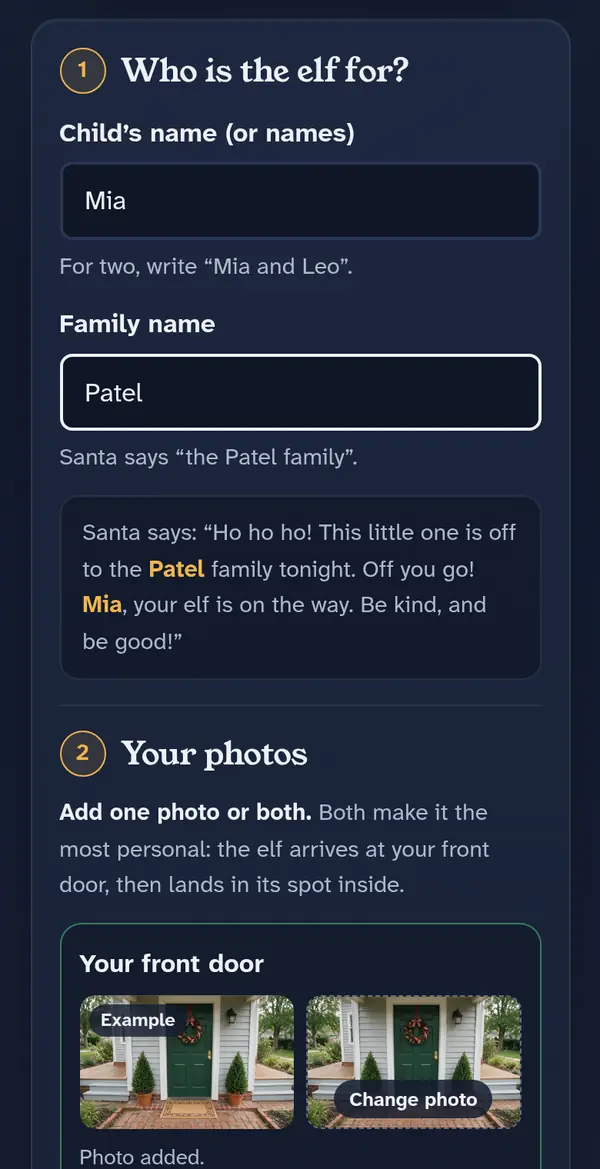
Santa sends your elf off from the North Pole and says your child’s name. Then the elf arrives at your own front door and lands in its spot in your home. About 20 seconds long, ready in about 3 minutes.
- Open Santa’s arrival video and type the child’s name (or names) and your family name.
- Add a photo of your front door, your elf in its spot, or both. Both make it the most personal.
- Tap Make my arrival video.
It uses 2 videos from a pack and isn’t part of the free preview. If it can’t be made, the videos go back to your balance, and there’s one free redo.
Step 11
My videos and your plan
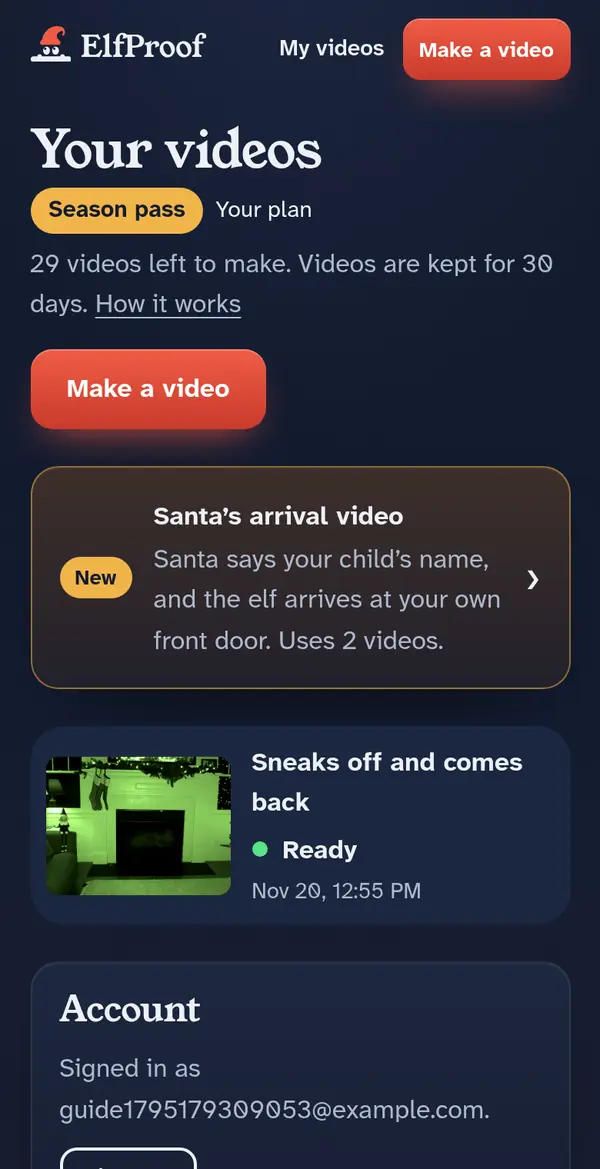
My videos shows your plan, how many videos you have left, and every video you’ve made. Sign in any time with your email; there’s no password.
- Videos are kept for 30 days. Save the ones you want to keep.
- Bought Three or Twelve videos? For 30 days you can upgrade to the Season pass and pay only the difference.
- You can delete all your photos and videos at any time from the bottom of the page.
Step 12
If something goes wrong
- The video didn’t work: the video goes back to your balance automatically. Try again with the same photos, or change them.
- The elf looks wrong: use the free redo. A new photo with more light and more room around the elf often helps.
- No email from us: check your spam folder, or sign in again with the same email.
- Anything else: contact us. The refund policy explains what happens if a video can’t be made.
Ready for tonight?
Your first video is a free preview. You only need a photo of your elf.